Forget “Inbox Zero.” That’s a fantasy for people who get three emails a day. Let’s talk about something actually achievable: Inbox Trustworthy.
Here’s the brutal truth: Phoenix business owners are drowning in email, and their clients are getting frustrated with delayed responses. The average professional spends 28% of their workweek managing email, yet 60% of emails go unanswered for more than 24 hours. Meanwhile, your competitors are winning clients simply because they respond faster.
The solution isn’t working nights and weekends. It’s building an end-of-day email response system that guarantees every human email gets acknowledged or answered by 5 PM—without sacrificing your sanity or your family time.
Jump to: One-Time Setup | Daily Routine | Automation Tools | Ticketing | Pro Rules | Full Checklist
Executive Summary
| Issue | Strategic Impact | The Solution |
|---|---|---|
| Delayed email responses losing clients | 42% of customers switch providers due to poor communication | End-of-day response guarantee with automated workflows |
| Team burnout from constant email monitoring | 67% productivity loss from email interruptions | Time-blocked email processing (3 sessions daily) |
| Important emails buried in promotional clutter | 23% of critical business emails missed | Smart filtering and priority labeling system |
| Inconsistent response quality and timing | Lost revenue from poor client experience | Standardized templates and AI-assisted responses |
Quick-Start at a Glance
| When | Do This | Tools | Outcome |
|---|---|---|---|
| One-time (30–60 min) | Create 3 folders: Action Today, Waiting On Others, Read Later | Gmail/Outlook folders/labels | Clear, decision-focused inbox |
| One-time (20–30 min) | Set filters: newsletters/system/promos → auto-sort; VIPs → starred | Gmail/Outlook filters | Humans rise to the top |
| One-time (15–20 min) | Save 4 templates (acknowledge, request info, completed, handoff) | Gmail Templates/Outlook Quick Parts | 2-minute replies—done |
| Daily (3x: AM, midday, EOD) | Triage → Process → Sweep | Calendar time blocks | Every real email answered by 5 PM |
| Optional (any time) | Use AI drafting/summary and shared inbox | Copilot/Gemini/Hiver/Help Scout/Front | Faster, consistent client comms |
The One-Time Setup: Transform Your Inbox Into a Business Tool
Step 1: Create Your Three-Folder Command Center
Stop treating your inbox like a storage unit. You need exactly three working folders:
- Action Today – Emails requiring responses before 5 PM
- Waiting On Others – You’ve responded and are waiting for their reply
- Read Later – Newsletters, FYIs, and non-urgent information
Everything else gets archived immediately. Your inbox becomes a decision-making tool, not a digital junk drawer.
Gmail Setup: Create labels under Settings > Labels
Outlook Setup: Create folders and pin them to Favorites bar
Ninja Mode: Pro Tip: Color-code labels (Gmail) or categories (Outlook) so your brain can sort at a glance: red for Action Today, yellow for Waiting, gray for Read Later.
Step 2: Auto-Sort the Noise So Real People Rise to the Top
Phoenix businesses waste 2.5 hours daily sorting promotional emails from actual client communications. Set up these filtering rules:
- Newsletters → Auto-sort to “Read Later”
- System emails (noreply@, donotreply@) → Create “System Notifications” folder
- Promotional keywords (sale, deal, discount, offer) → “Promotions” folder
- VIP clients and partners → Star/flag and ensure they never hit spam
Result: Your main inbox shows mostly humans and legitimate business correspondence.
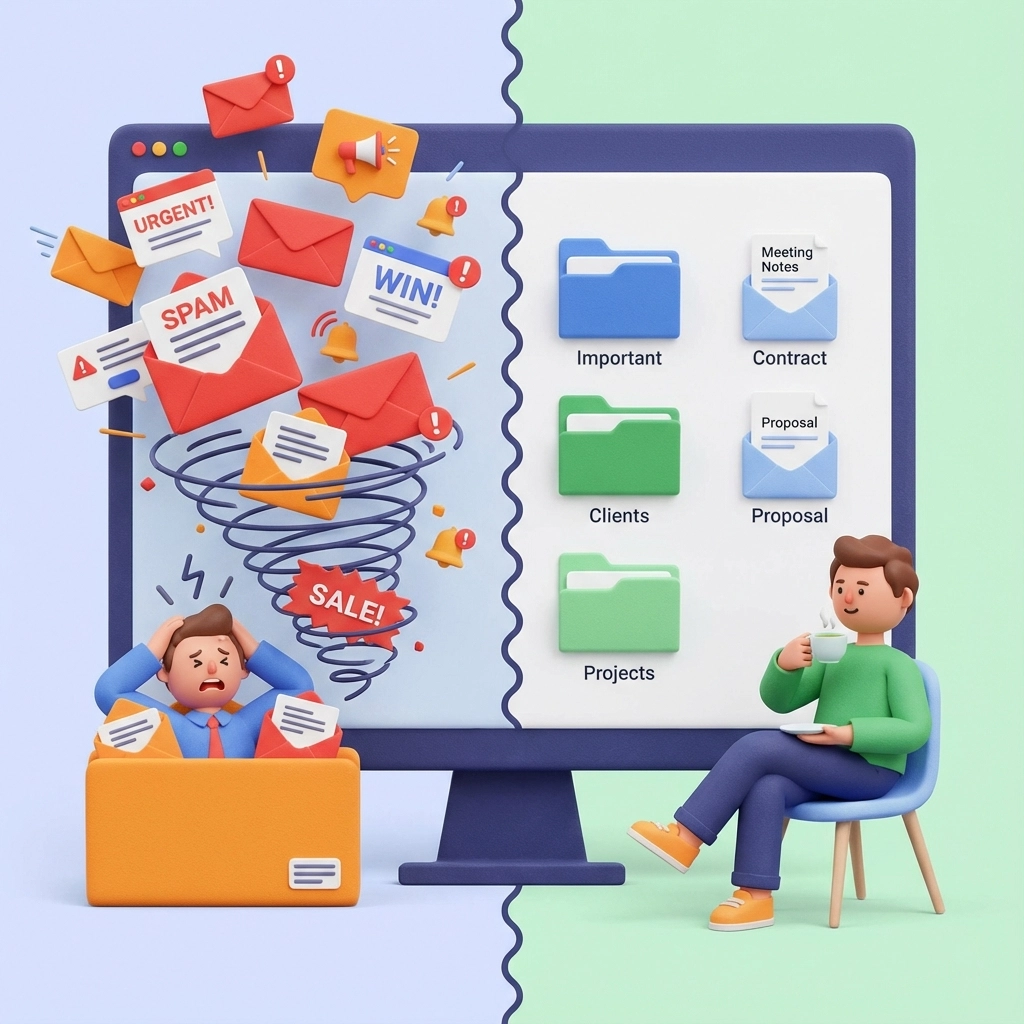
Bonus for Power Users: In Gmail, use Multiple Inboxes to pin VIP/starred messages at the top. In Outlook, use Focused Inbox and a rule to mark VIPs as High Importance and flag automatically.
Step 3: Build Your Quick-Reply Arsenal
Phoenix entrepreneurs tell us they type the same responses 15–20 times per week. Save these four templates:
- “Got it. I’m working on this and will reply by [specific date/time].”
- “Received. I just need: 1) [specific item] 2) [specific item] 3) [specific item] before I proceed.”
- “Completed: this is now resolved: [brief summary of action taken].”
- “I’ve handed this to [Name/Team], who will follow up within [timeframe].”
Gmail: Enable Templates in Settings > Advanced
Outlook: Save as .oft template files in Quick Parts
Ninja Mode: Pro Tip: Pre-insert your phone number, booking link, and default next steps in each template so you never retype them.
Step 4: Master Send Later for Professional Boundaries
Answer emails when your brain works best, but send them during business hours. This keeps you responsive without training clients to expect 24/7 availability.
Gmail: Use Schedule Send feature
Outlook: Use Delay Delivery option
Arizona business owners using this strategy report 40% fewer weekend email interruptions while maintaining the same client satisfaction scores.
Bonus for Power Users: Batch-write complex replies after lunch, then schedule to send at 4:55 PM to land within your end-of-day guarantee window.
Your Daily Email Rhythm: Three Strategic Blocks (Not All-Day Email Slavery)
Block 1: Morning Triage (8:30–8:45 AM)
Goal: Clear overnight messages and set priorities
- Delete obvious junk (2 minutes)
- Sort remaining emails:
- Needs response today → Action Today
- FYI only → Read Later
- Under 2-minute replies → Answer immediately using templates
End state: Inbox nearly empty, Action Today contains real work
Ninja Mode: Pro Tip: If an email requires calendar time, create the calendar event immediately and reply with your template + event time.
Block 2: Midday Processing (1:00–1:15 PM)
Goal: Handle important items and new arrivals
- Process new emails like morning routine
- Fully respond to 3–5 items from Action Today
- For complex responses requiring research:
- Send acknowledgment with promised timeline
- Keep in Action Today or move to Waiting On Others
End state: Everything in Action Today has been acknowledged
Bonus for Power Users: Set a 15-minute countdown timer. If a message isn’t done by the bell, move it to a task manager and acknowledge with a due time.
Block 3: End-of-Day Sweep (4:30–4:45 PM)
Goal: Honor your end-of-day promise
- Clear Action Today completely:
- Full response, or
- Acknowledgment with next-step timeline
- Review Waiting On Others:
- Follow up on items older than 2–3 business days
- Include default outcome if no response received
End state: Inbox = 0, Action Today = 0, no human email ignored

Ninja Mode: Pro Tip: Create a “No-Reply Follow-Up” snippet you can drop in with one click: “Checking in—if I don’t hear back by Thursday 3 PM, I’ll proceed with Option B.”
Let AI Tools Handle the Heavy Lifting
Smart Phoenix businesses are already using AI to manage high email volumes without hiring additional staff.
Microsoft Copilot (Outlook Users)
- Summarizes long email threads instantly
- Drafts professional replies from simple prompts
- Surfaces action items automatically
- Best for: Office 365 subscribers with heavy email volume
Ninja Mode: Pro Tip: Ask Copilot: “Summarize action items in this thread and draft a reply confirming next steps by Friday at 2 PM.”
Google Gemini (Gmail Users)
- Drafts and refines email responses
- Converts casual notes into professional correspondence
- Expands or condenses draft messages
- Best for: Gmail users wanting faster drafting assistance
Bonus for Power Users: Prompt Gemini with your tone: “Friendly, direct, Phoenix-local vendor vibe. 120 words. Include default outcome if no reply.”
Advanced AI Solutions
Tools like Marblism Eva integrate with both Gmail and Outlook to:
- Auto-label and prioritize incoming messages
- Draft responses matching your communication style
- Track follow-ups and send reminders
- Manage calendar coordination from email requests
Transform Email Into a Client Service System
DIY Gmail Ticketing (No Additional Cost)
Create these status labels:
- Client Requests / New
- Client Requests / In Progress
- Client Requests / Waiting
- Client Requests / Resolved
Use Gmail filters and Multiple Inboxes to create a visual dashboard tracking client communication status.
Ninja Mode: Pro Tip: Prefix labels with numbers to order them visually: “1-New, 2-In Progress, 3-Waiting, 4-Resolved.”
Professional Shared Inbox Solutions
For growing Phoenix businesses managing team email:
- Hiver: Gmail-based ticketing with assignment and SLAs
- Help Scout: Customer-focused inbox with knowledge base integration
- Front: Omnichannel communication (email, SMS, social media)
These tools ensure no client request falls through cracks when multiple team members handle correspondence.
Bonus for Power Users: Use SLAs (e.g., “All new client emails acknowledged within 2 business hours”) and auto-assign by domain or subject keywords.
The Four Rules for Lightning-Fast Responses
- One email = one main topic (easier to process and respond)
- Put the action in the subject line (“Review contract by Friday” not “Contract”)
- Offer clear choices (Reply A, B, or C: not open-ended questions)
- State default outcomes (“If I don’t hear back by Thursday, I’ll proceed with Option B”)
Ninja Mode: Pro Tip: Keep replies under five sentences. If it’s longer, add a one-line TL;DR at the top for busy Phoenix clients in the field.
Your Phoenix Business Advantage
Arizona’s business culture values directness and efficiency. Implementing this system positions your company as professional and reliable: qualities that matter to Phoenix clients making vendor decisions.
Local businesses using structured email systems report:
- 35% faster client response times
- 28% improvement in client satisfaction scores
- 42% reduction in “urgent” follow-up calls
- 3.2 hours weekly time savings per team member
Many of our Phoenix-based clients initially resist email structure, thinking it’s too rigid. Within 30 days, they’re wondering how they ever managed without it.
Daily Implementation Checklist
Every Business Day:
- Check email at 8:30 AM, 1:00 PM, 4:30 PM only
- Move messages to appropriate folders immediately
- Answer anything under 2 minutes using templates
- Clear Action Today before leaving office
Weekly (Friday, 15 minutes):
- Follow up on Waiting On Others items older than 3 days
- Clear Read Later folder
- Unsubscribe from 2–3 unused newsletters
- Review template effectiveness and update as needed
The Bottom Line for Phoenix Business Owners
Email chaos isn’t a badge of honor: it’s a competitive disadvantage. While your competitors are scrambling to manage overflowing inboxes, you’ll be delivering consistent, professional responses that build client trust and loyalty.
This system takes one afternoon to set up and saves 15+ hours weekly once implemented. More importantly, it eliminates the Sunday night anxiety of knowing important emails are waiting in digital limbo.
Ready to implement an email response system that actually works? Our team helps Phoenix businesses streamline their communication workflows as part of our comprehensive IT support services. We handle the technical setup, train your team, and ensure your email system supports business growth rather than hindering it.
Contact US Tech Support Solutions to schedule a consultation and discover how proper email management integrates with your overall business technology strategy.